Team Administrator
The following links explain how Team Plan Owners and Team Administrators create and manage Teams.
Team Overview
ClassClicker Teams allow educators to share Quiz Sets, Quizzes, Quiz Set Results, and Vote Results within their organization.
The Team system has the following roles:
- Team Plan Owner
- The account that subscribes to and manages the Team Plan. The Team Plan Owner can create Teams, manage every Team under the subscription, and access the All Teams page. The Team Plan Owner automatically has management privileges for every Team, even when the Team Plan Owner is not a member of that Team.
- Team Administrator
- The person responsible for managing an individual Team. Each Team has one Team Administrator. The Team Administrator can approve join requests, manage members, regenerate the Join Code, edit the Team, change the Team Administrator, and delete the Team.
- Team Member
- An approved user who can access and use resources shared within the Team. Team Members cannot manage the Team.
Team Management from My Account
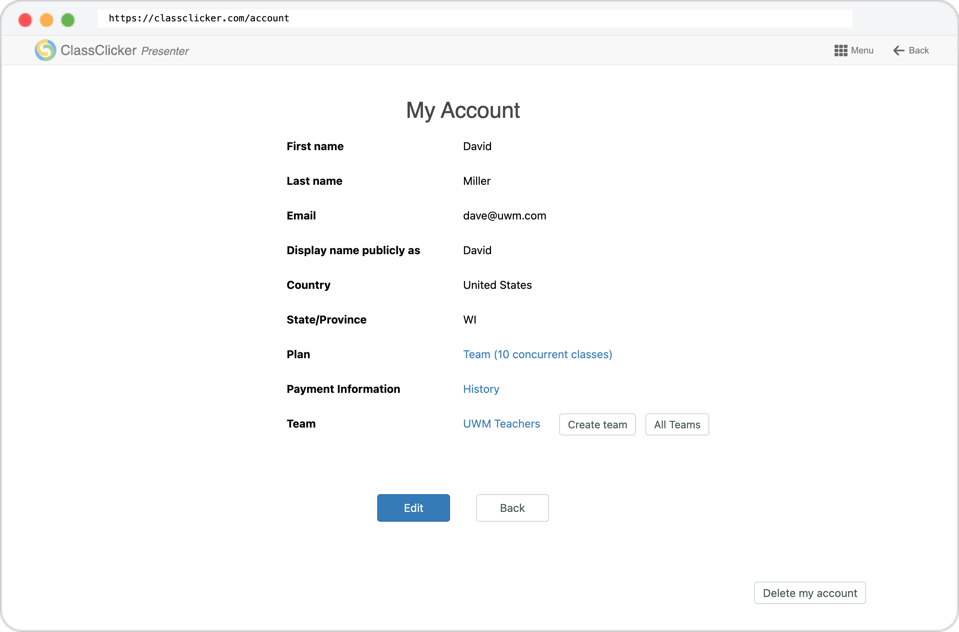
Team Plan Owners can manage their Teams from the My Account page. Click a Team name to open and manage that Team. You can also create a new Team or open the All Teams page.
Team Administrators can also open the Teams they manage from their My Account page.
All Teams
The All Teams page is available only to the Team Plan Owner.
It provides an overview of every Team created under the Team Plan, regardless of whether the Team Plan Owner is a member of those Teams.
From the All Teams page, the Team Plan Owner can:
- View all Teams created under the Team Plan.
- Open and manage any Team.
- View the Team Administrator and the Team Administrator's email address.
- View the number of members in each Team.
- Sort Teams by Team name, Team Administrator, email address, creation date, or member count.
- Delete one or more Teams when necessary.
The All Teams page helps the Team Plan Owner monitor and manage Teams across the organization.
Create a Team
A Team can be created by the Team Plan Owner or an existing Team Administrator. Team Members cannot create Teams.
The user who creates a Team becomes its Team Administrator. Each Team has one Team Administrator.
Steps to create a Team
- Open the My Account page.
- Click the Create team button.
- Enter a Team name.
- Click the Create button.
A Join Code is automatically generated when the Team is created.
The Team Administrator or Team Plan Owner can regenerate the Join Code when necessary.
Note: Team names must be unique within the same Team Plan.
Invite Members
Users request to join a Team by entering its Join Code. A join request must be approved before the user becomes an approved Team Member.
Steps to invite a user
- Open the Team page.
- Copy the Join Code.
- Send the Join Code privately to the users you want to invite.
- Ask each user to enter the Join Code on the Join Team page.
Important: Do not publish the Join Code on public websites, social media, public message boards, or other publicly accessible locations. Share it only with users who should request access to the Team.
Publishing a Join Code may cause unknown users to submit join requests. The Team Administrator or Team Plan Owner should verify each applicant before approval.
Approve Join Requests
When a user submits a valid Join Code, the account is added to the Team as a pending request. The user cannot access Team resources until the request is approved.
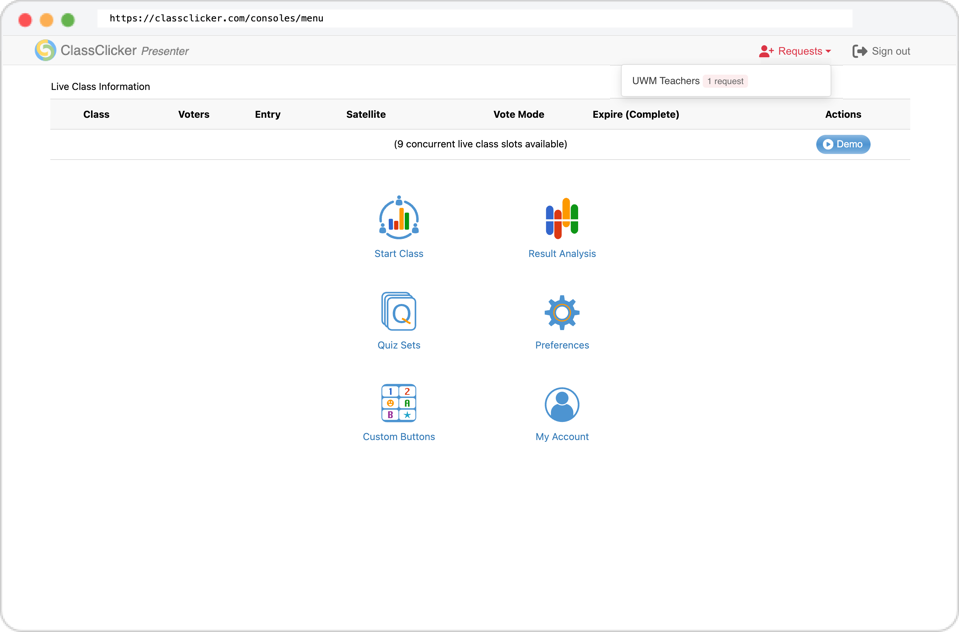
If one or more Teams you manage have pending requests, the red Requests menu appears in the application header. Click Requests to see the Teams that have pending join requests.
Steps to approve a join request
- Click the Requests menu in the application header.
- Select the Team containing the pending request.
- Review the applicant's name, display name, and email address.
- Select one or more pending accounts.
- Click the Approve button.
Pending requests are shown as Pending Approval in the Team Members list on the Team page.
Important: Verify that the account belongs to the intended user before approving it. The email address is provided to help prevent approval of impersonated or unauthorized accounts.
Manage Team Members
The Team Administrator and Team Plan Owner can manage Team membership from the Team page.
The Team page shows the Team's Join Code, Team Administrator, membership status, join request date, and current live status.
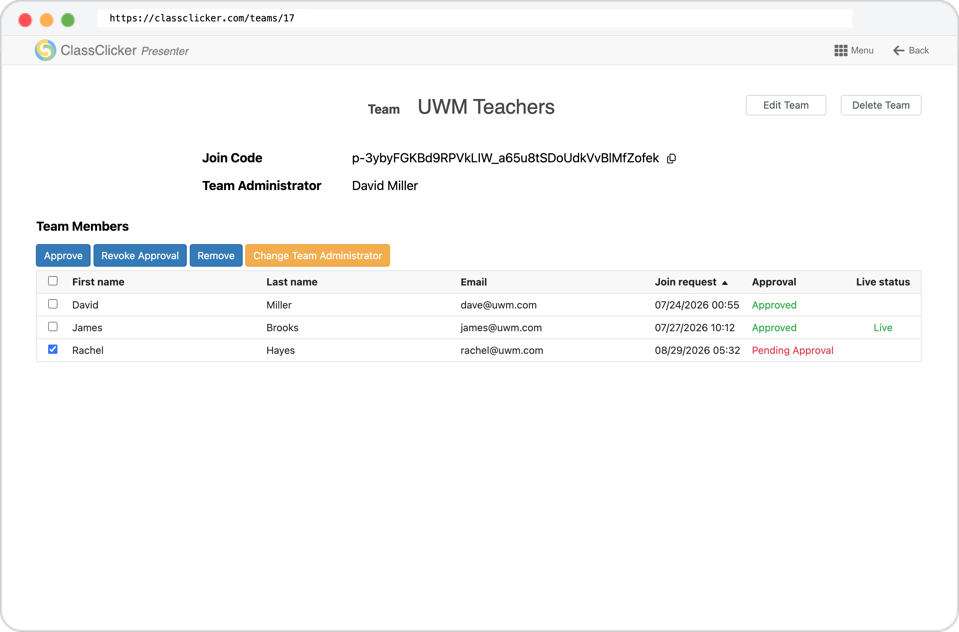
- Approve
- Approves the selected pending accounts and grants them access to the Team and its Team Plan benefits.
- Revoke Approval
- Revokes approval from the selected Team Members. The users can no longer access resources shared within the Team. Their Team resources remain in the Team and ownership is not changed.
- Remove
- Removes the selected accounts from the Team. Removed users lose access to the Team and its shared resources. Ownership of Team resources owned by the removed users is transferred to the Team Administrator so that the resources remain available to the Team.
- Change Team Administrator
- Assigns responsibility for managing the Team to another approved Team Member. Each Team has one Team Administrator.
Manage Team Resources
Approved Team Members can create and use resources within a Team. Team resources include:
- Team Quiz Sets
- Team Quizzes
- Team Quiz Set Results
- Team Vote Results
Resources associated with a Team are available through the Team views to approved members of that Team.
Quiz Sets and Quizzes remain editable only by their respective owners. Other approved Team Members can view and run shared Team resources, but they cannot edit resources owned by another user.
If a Team Member is removed from a Team, ownership of that member's Team resources is transferred to the Team Administrator. The resources remain available to the Team.
Similarly, if a resource owner's account is deleted, Team resources owned by that account remain available to the Team and ownership is transferred to the Team Administrator.
This allows Team resources to remain available when a teacher or other Team Member leaves the organization.
If the Team itself is deleted, its resources are removed from Team management and returned to the personal views of their current resource owners.
Resources returned to personal views may later be moved to another Team when reorganizing Teams.
Change Team Administrator
Each Team has one Team Administrator. The Team Administrator can be changed to another approved Team Member.
This can be useful when responsibility for managing a Team needs to be transferred to another person.
Steps to change the Team Administrator
- Open the Team page.
- Select the approved Team Member who will become the new Team Administrator.
- Click the Change Team Administrator button.
- Confirm the change.
After the change, the selected Team Member becomes the Team Administrator and takes responsibility for managing the Team.
Note: An account cannot be deleted while it is the Team Administrator of a Team. The Team Administrator must first be changed to another approved Team Member.
Delete a Team
A Team can be deleted only by its Team Administrator or the Team Plan Owner.
The Delete Team button is available on the Team page.
Deleting a Team is permanent and cannot be undone.
When a Team is deleted:
- The Team and its membership records are permanently removed.
- All Team Members lose access to the Team.
- Team Quiz Sets, Quizzes, Quiz Set Results, and Vote Results are removed from Team management.
- Each resource becomes available only in the personal view of its current resource owner.
- Other former Team Members can no longer view, run, or otherwise use those resources.
Resources returned to their owners' personal views may later be moved to another Team if needed.
Delete a Team only when you are certain that it is no longer needed and that its members understand that shared access will be lost.