Team Member
The following links explain how to request to join a Team, check your membership status, use and create Team resources, move My Quiz Sets to a Team, and understand the Team Member plan.
Team Member Overview
A ClassClicker Team allows approved members to view and run Quiz Sets, Quizzes, Quiz Set Results, and Vote Results shared within the Team.
To become a Team Member, you must submit a join request using a Join Code provided by the Team Administrator. Your request must be approved before you can use Team resources or receive Team Member plan benefits.
Team Members can check their membership status on the My Account page and access approved Team resources from the resource view menus.
Team Quiz Sets and Team Quizzes can be viewed and run by other approved Team Members, but only their respective owners can edit them.
For privacy and security, Team Members cannot open Team management pages or view other Team Members' names and email addresses.
Request to Join a Team
You can request to join a Team from the ClassClicker home page. Before starting, obtain the Team's Join Code from the Team Administrator.
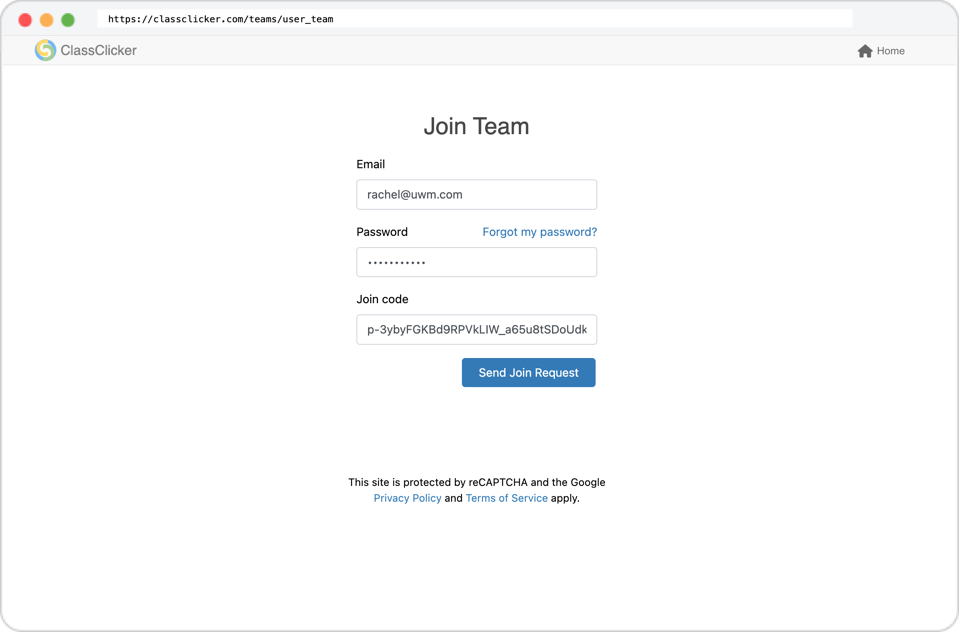
Steps to request to join a Team
- Open the ClassClicker home page.
- Click Join Team in the application header.
- Enter the email address and password for your ClassClicker account.
- Enter the Join Code provided by the Team Administrator.
- Click the Send Join Request button.
After your request is submitted, a message confirms that it is awaiting approval.
Note: You must have an activated ClassClicker account before submitting a join request. If you do not have an account, create and activate one before joining a Team.
Security note: Do not share a Join Code publicly or give it to people who should not request access to the Team.
Wait for Approval
Submitting a Join Code creates a pending join request. It does not immediately make you an approved Team Member.
The Team Administrator or Team Plan Owner must review and approve your request. They may use your name, display name, and account email address to verify your identity.
You can check the status of your join request on the My Account page. While your request is waiting for approval, the Team is shown as Pending Team Joining Request.
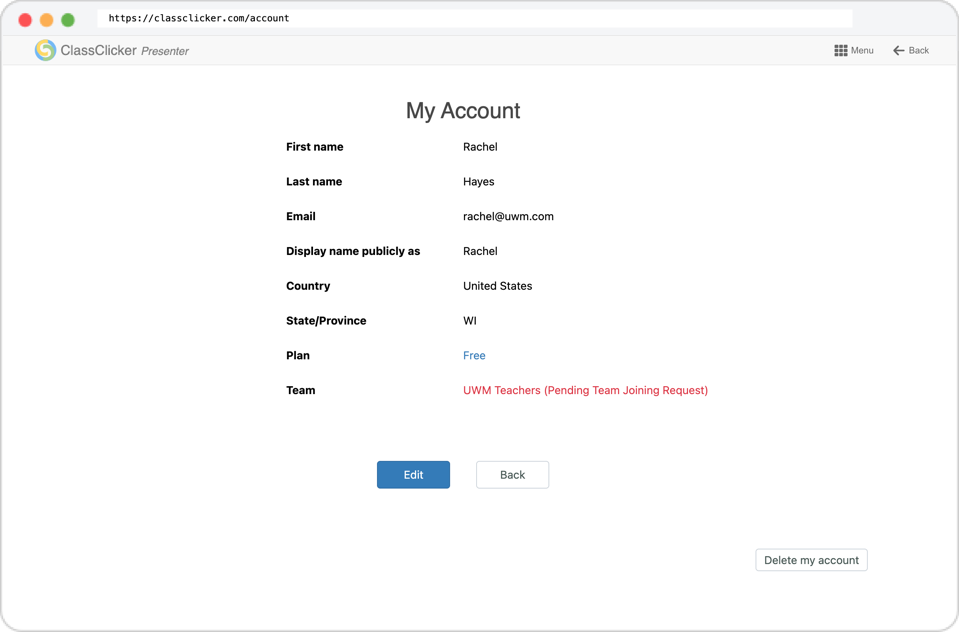
While your request is pending:
- You cannot access resources shared within that Team.
- Your account does not yet receive Team Member plan benefits.
After approval, the pending status is removed, the Team name is shown as an approved membership, and your account begins using the Team Member plan if it was previously using the Free Plan.
If your request has not been approved after a reasonable period, contact the Team Administrator who provided the Join Code.
Check Your Team Status
You can check your approved Team memberships and pending join requests on the My Account page.
Steps to check your Team status
- Sign in to ClassClicker.
- Open the My Account page.
- Check the Team field.
Approved Teams are displayed by Team name. Pending join requests are displayed in red with Pending Team Joining Request.
Team Members can see the names of the Teams they belong to, but the Team names are not links. Team Members cannot open Team management pages.
This restriction protects Team Members' names and email addresses. Team membership details are available only to the Team Administrator and Team Plan Owner.
If a request remains pending for an extended period, contact the Team Administrator who provided the Join Code.
Team Member Plan
When a Free Plan user is approved to join a Team, the account automatically begins using the Team Member plan.
This applies to Team Members and Team Administrators whose accounts do not have their own paid subscription. The Team Plan Owner continues to use the subscribed Team Plan.
On the My Account page, the Plan field displays Team Member. Click the Team Member link to open the Our Plans page.
On the Our Plans page, Team Member is shown as your current plan.
While your account is using the Team Member plan, you receive the features and usage limits provided by the associated Team Plan, including its permitted number of concurrent live classes.
An account using the Team Member plan cannot switch to another plan while it remains associated with a Team Plan subscription.
If you are removed from every Team associated with your current Team Plan, your account automatically returns to the Free Plan. You may then choose another available plan or request to join a Team under a different Team Plan subscription.
Use Team Resources
After your Team membership is approved, you can access resources shared within that Team.
Team resources include:
- Team Quiz Sets
- Team Quizzes
- Team Quiz Set Results
- Team Vote Results
To display Team resources, open the view menu on the corresponding resource page and select the Team name.
View Team Quiz Sets
- Sign in to ClassClicker.
- Open the Quiz Sets page.
- Open the Quiz Set view menu.
- Select the Team name.
The Team Quiz Sets owned by approved Team Members of the selected Team are displayed.
You can open and run Team Quiz Sets owned by other Team Members, but only the owner of each Quiz Set can edit or remove it.
View Team Quizzes
- Open the Quizzes page.
- Open the Quiz view menu.
- Select the Team name.
The Team Quizzes owned by approved Team Members of the selected Team are displayed.
You can view and use Team Quizzes owned by other Team Members, but only the owner of each Quiz can edit or remove it.
View Team Results
Team Quiz Set Results and Team Vote Results can be accessed by selecting the Team name from the corresponding result view menu.
Team results are shared only with approved Team Members of the same Team.
When you are removed from a Team, you can no longer view or use resources belonging to that Team.
Create Team Resources
Approved Team Members can create Quiz Sets directly in a Team view.
You can also create Quiz Sets in My Quiz Sets and move them to a Team later.
Create a Team Quiz Set
- Open the Quiz Sets page.
- Open the Quiz Set view menu.
- Select the Team in which you want to create the Quiz Set.
- Click the Create Quiz Set button.
- Enter the Quiz Set information.
- Save the Quiz Set.
The Quiz Set is created as a Team Quiz Set, and you become its owner.
Other approved Team Members can view and run the Quiz Set and its Quizzes, but only their respective owners can edit them.
Add Quizzes to a Team Quiz Set
You can create a new Quiz in the Team Quiz Set or import an existing Quiz.
When you import one of your My Quizzes or a Quiz from another Team, ClassClicker creates a copy of that Quiz. The copied Quiz becomes a separate Team Quiz owned by you.
Changes made to the copied Team Quiz do not change the original Quiz, and changes made to the original Quiz do not change the copied Team Quiz.
When you import a Public Quiz, the Team Quiz Set references the existing Public Quiz instead of creating a copy.
A referenced Public Quiz remains owned by its original owner. It is read-only within your Team Quiz Set.
Published Public Quizzes are read-only and cannot be edited by anyone, including their owners.
Click the Back button to return to the previous page.
Move My Quiz Sets to a Team
You can move one or more of your non-public My Quiz Sets to a Team in which you are an approved Team Member.
This is useful when you initially created resources in My Quiz Sets and later decide to share them with a Team.
Steps to move My Quiz Sets
- Open the Quiz Sets page.
- Select My Quiz Sets from the Quiz Set view menu.
- Select the Quiz Sets you want to move.
- Click the Move to Team button.
- Select the destination Team.
- Confirm the move.
The selected Quiz Sets become Team Quiz Sets in the destination Team. You remain the owner of those Quiz Sets.
Other approved Team Members of the destination Team can view and run the Quiz Sets and their Quizzes, but only their respective owners can edit them.
Quizzes moved with the Quiz Sets
ClassClicker moves the non-public Quizzes that are owned by you and used by the selected Quiz Sets to the same destination Team.
You remain the owner of those Quizzes.
A Quiz owned by another user is not transferred to your ownership.
Public Quizzes are not moved. They remain public and continue to be referenced by the moved Quiz Sets.
Moving a Quiz Set changes its location from your personal view to the selected Team view. It does not create another copy of the Quiz Set.
Only your non-public My Quiz Sets can be moved using this operation. Public Quiz Sets and Quiz Sets owned by another user cannot be moved by you.
Join Multiple Teams
A ClassClicker account may belong to multiple Teams.
To join another Team, submit another join request using the Join Code provided by that Team's Team Administrator.
Each request must be approved separately. Approval for one Team does not automatically approve your membership in another Team.
After approval, each Team name appears in the Team field on your My Account page.
The resource view menus also display the Teams in which you are an approved Team Member. Select a Team name to display resources shared within that Team.
Resources belonging to different Teams remain separate. Members of one Team cannot access another Team's resources unless they are also approved members of that Team.
Your ClassClicker account can be associated with only one Team Plan subscription at a time.
If your account is already associated with one Team Plan, you cannot join a Team under a different Team Plan until you are removed from every Team associated with your current Team Plan.
Leave or Change Teams
Team Members cannot remove themselves directly from a Team.
To leave a Team, contact the Team Administrator and ask to be removed from the Team. The Team Plan Owner can also remove members from any Team under the Team Plan.
After you are removed:
- The Team no longer appears as an approved membership.
- You can no longer view or run that Team's resources.
- You can no longer create or move resources into that Team.
- Ownership of your resources belonging to that Team is transferred to the Team Administrator, so those resources remain available to the Team.
If you still belong to another Team under the same Team Plan, your account continues to use the Team Member plan.
If you are removed from every Team associated with your current Team Plan and you do not have your own paid subscription, your account automatically returns to the Free Plan.
To join a Team under a different Team Plan, you must first be removed from every Team associated with your current Team Plan. You can then submit a join request using the new Team's Join Code.